When we tell historical stories, we tend to tell them chronologically. As a result, timelines are extremely common historical visualizations. You probably can’t find a history textbook that doesn’t include a timeline somewhere within its pages. In this project, you’ll be making an interactive timeline using a tool called TimelineJS.
A Note on the Due Date
This project is due on at 10:30 AM on Monday, March 18th. While you would usually only get two weeks to complete this project, due to where Spring Break falls this semester, I am extending the due date to the 18th. This is to allow anyone who needs technical help to have access to office hours that will not happen during Spring Break. However, be aware that you will also have Blog Post #3 due on that same Monday, March 18th (assigned March 11th). So, while I never advise leaving any of our projects to the last minute, I strongly advise not doing that with this one. The extra weekend is my generosity to you. Please use it wisely.
Part 1: Choose Your Events
Before you even begin looking at our new digital tool, sit down and brainstorm events for your timeline. As you’re working on your timeline, keep in mind the perspective you are writing your timeline from. Just because you’re presenting events chronologically doesn’t mean you aren’t still creating a narrative. You can’t include every event ever on your timeline. Consider who’s timeline you’re making. There’s no “just the facts” about a timeline, any more than there is about archives, books, articles, audio or anything else we’re researching and creating this semester.
Things to keep in mind as you’re selecting your events:
- You will need at least 10 and no more than 15 events for your timeline.
- Avoid making a comprehensive timeline of your research subject. Choose a perspective to focus on. I should be able to tell what your angle is by looking at the events you’ve chosen.
- Use the sources you’ve found for your Zotero and Tropy projects to help you figure out what’s important. If you need to do more research, do so! And go ahead and add it to your Zotero and/or Tropy projects.
- Write down details about your events as you select them. You should know when it happened, who was involved, why it’s important and, importantly, where you’re getting your information. You’ll need to cite your sources!
- If a timeline about your subject already exists, like on Wikipedia or another website, be very careful not to plagiarize your timeline. You should choose your events yourself and write your descriptions and justifications in your own words. Choosing a particular perspective will help you avoid over-relying on an already existent timeline.
Part 2: Building Your Timeline
We’ll be using TimelineJS, an open-source tool developed by Knight Lab, to create our interactive timelines. TimelineJS is used by many different websites, including the timeline of the American Revolution you had to explore before class.
- Before you begin using TimelineJS, you will need a Gmail account in order to create the Google Sheet your timeline will be based on. If you already have a Gmail account, you can use that one. If you do not or you would like to make a throwaway account, you can do so for free by following the steps outlined here.
- Go to TimelineJS. Click on “Make a Timeline.”
- You’ll be building a new Google Sheet using TimelineJS’ template. To do so, download the template by clicking on “Get the Spreadsheet Template.” You’ll need to copy the template to your own Google Drive by clicking the “Make a Copy” button.
- Rename your spreadsheet from “Copy of Official TimelineJS3 Template” to a title that fits your timeline. Delete the example events that are in the template.
- Set up the title slide of your timeline. Use Row 2 for your title slide. Under ‘Headline’ (column J), write the title of your timeline. Then, scroll over to ‘Type’ (Column P). Select ‘title’ as the type for this row. Your timeline MUST have a title slide.
- Add events to your timeline by filling out the Google Sheet appropriately. For each event, you MUST include the following:
– In columns A through D, the year, month and day of each event. Time, if applicable, is not necessary. Months must be in number form. (Ex. Write “1”, not “January”.)
– In columns J and K, under ‘Headline’, the title of your event and, under ‘Text’, one short paragraph per event about what your event is in more detail. Make sure you include what happened, who was involved and why it matters.
Optional additions you can include in your timeline:
- Optional: If your event has an end date (like, for example, the construction of a building that takes several days), you can include the end date in columns E through H.
- Optional: You are welcome to include pictures to spice up your timeline; however, any pictures you use MUST be public domain. You may not use anything that is not in the public domain. Refer to Dr. Abby Mullen’s Public Domain Guidance for help figuring out if you can use an image. If you aren’t sure whether or not an image is public domain, play it safe and do not use it. Consider this guide to finding public domain and creative commons images from the Gettysburg DH Toolkit.
To include images in your timeline, check TimelineJS’ supported media types here. Under Column L, enter the URL link to the image. Under Column M, you must include a full citation crediting the original source. In Column N, write a short caption describing the image.
Part 3: Publishing Your Timeline
Once you’ve completely filled out your spreadsheet, it’s time to publish your timeline to the web!
- In your Google Sheet, in the menu, go to “File”, then “Share” and then “Publish to the Web.”
If you’re using the Google Sheet app on a mobile device, you will need a computer in order to publish your Sheet to the web. - Click “Publish” on the box that pops up. You don’t need to change any settings in that box. It will ask if you’re sure. You are! Click “Okay.”
- Close the Publish to the Web window, but keep your Google Sheet open. In a different tab or window, return to TimelineJS.
Part 4: Complete Your Timeline on the TimelineJS Website
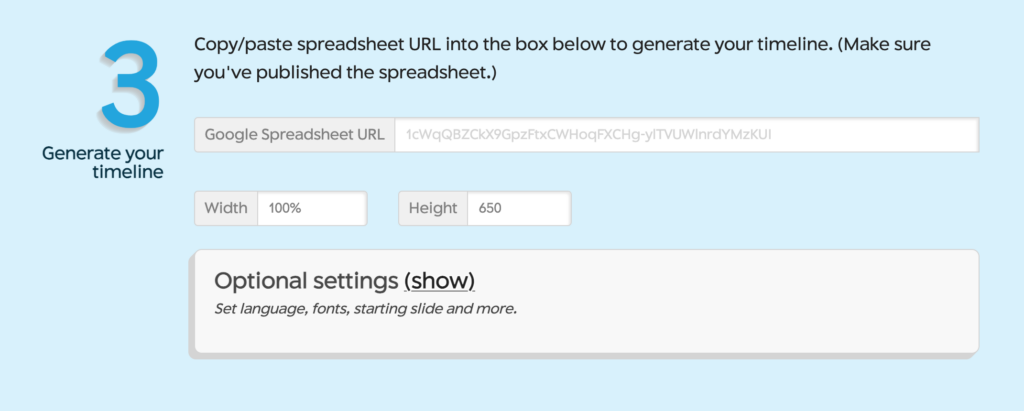
- While keeping your Google Sheet open, return to the TimelineJS website in a new tab or window.
- Scroll down to #3 Generate Your Timeline (pictured above)
- In the box that says “Google Spreadsheet URL,” paste the link to your Google Sheet. This is NOT the link in the Publish to the Web window, but the link in the bar at the top of the Sheet.
- Optional: If you click “Show” next to “Optional Settings,” you will be able to change some of the aesthetics of your timeline, like what font it uses. You are welcome to play with those options, but it is not required.
- Preview your timeline by scrolling down to #4 Share Your Timeline and click “Preview” to see what your timeline looks like. If you catch any typos or mistakes, now is a good time to return to your Google Sheet and fix up those mistakes!
Part 5: Embed Your Finished Timeline in a Blog Post
Congratulations! You’ve finished your timeline, but you’re not done just yet. Now it’s time to put your timeline on your website by embedding it into a blog post. While this is a little tricky, I promise it isn’t scary if you follow this guide step by step.
- Keep TimelineJS where you’ve completed your timeline open. In a new tab or window, head over to your blog’s admin page (the page you use to make new blog posts). Start a new blog post!
- In your new blog post, click on the + icon to the side of where you usually type your text. You can also find the + in the top left corner of the screen. This will show you lots of things you can add to your post. (If you run into trouble, consult this WordPress tutorial.) The one we’re looking for is “Custom HTML”. You may have to click “Browse all” in order to find it. (While we are embedding something, do not use “Embed.” I know that’s confusing. Look for “Custom HTML.”) Click on “Custom HTML” to insert that block into your blog post.
- Go back to your TimelineJS timeline. Copy all of the text in the box under “Embed.” Make sure you copy all of the text.
- Return to your blog post. Paste the text into the Custom HTML box you created. If you click “Preview”, you’ll be able to see how your timeline will appear in your blog post.
- You’re ALMOST done. Beneath your embedded timeline, in a normal text block, write one last paragraph that answers ALL of the following questions:
– What is your timeline about?
– What perspective did you choose for your timeline?
– How do your chosen events represent that perspective? - Publish your post!
Submit your completed project by posting a link to your public blog post in the #week-07-timeline channel on Slack.