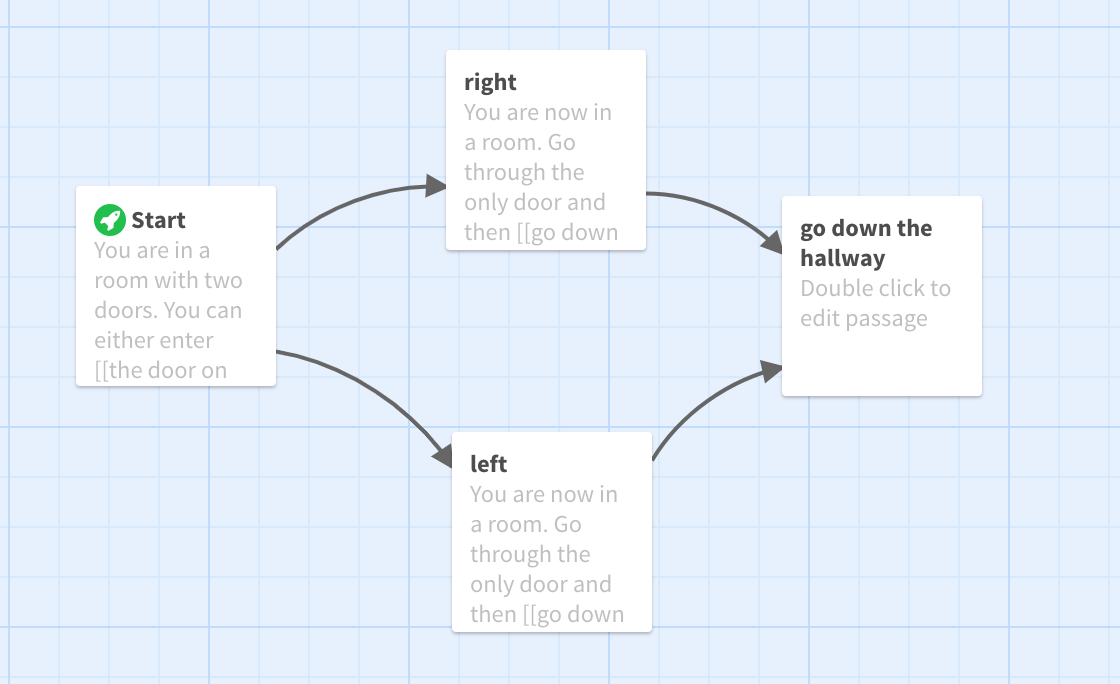
Variables in Twine take a little bit more space to explain than could reasonably fit on the assignment brief for Project #6. If you’re interested in adding some complexity to your game using variables, you’re in the right place! While they may seem a little complicated, once you get the hang of them, variables are a great way to make your game more, well, variable!
True/False Variables
Let’s say that you’re making a game about escaping from a castle. In order to be able to exit the castle, your player needs to find the key to the door. This key is hidden in some obscure passage of your game; you’ve made it deliberately hard to find. You’ll want a variable called something like $hasKey which will take one of two values: false when the player doesn’t have it and true when they find it. The $ tells Twine that this is a variable; ‘hasKey’ is the name and you can name your variables whatever you like. The player won’t see them.
By default, the player doesn’t have the key. So in the first passage of your game, you’ll want to create your variable, and set its to false, like this:
(set: $hasKey to false)This code will not be visible to the player but it will tell Twine what to do: create that variable and set it to false.

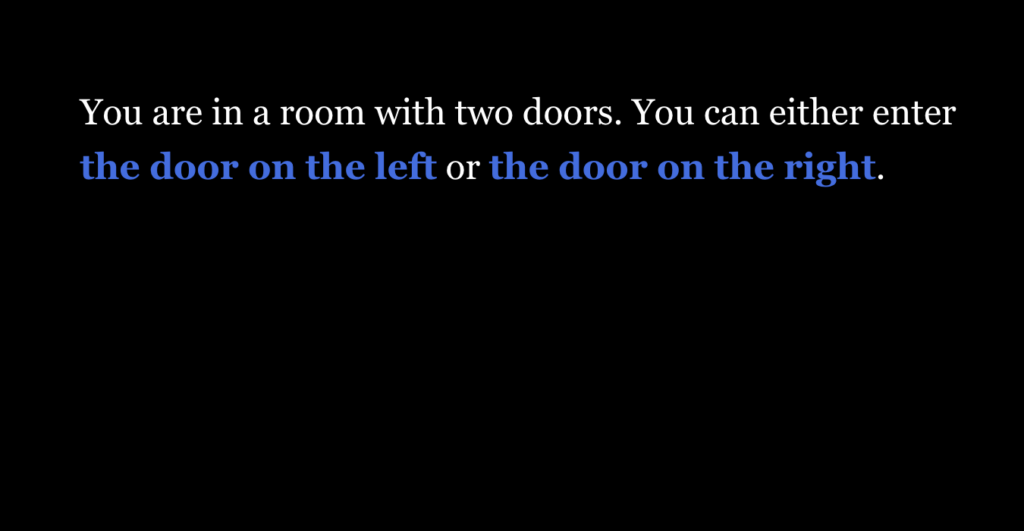
On the left, what our variable code looks like in Editor View; on the right, what the player sees.
While you can’t see the variable code, the game has still set $hasKey to false.
In the passage when your reader enters the hidden room and discovers the key, you’ll want to have set the value of $hasKey to true. You can do that by putting the following line of code into that passage:
(set: $hasKey to true)Note that (set: ) can create variables — but if the variable already exists, it just modifies the value of the variable.
Okay, so now imagine we’re in the passage of your game where the player has finally reached the main door of the castle and is trying to escape. If they have the key, they can escape. If they don’t, they can’t. To implement this, you could use a conditional statement, like this:
(if: $hasKey is true)[You insert your key and it opens the door. You [[walk through the door->outside]]](if: $hasKey is false)[You try to open the door, but it's locked, and it won't budge. You'll see to [[keep looking for the key->Start]].]First, Twine will check whether the value of $hasKey is true. If it is, it will display the text “You insert your key into the door and it opens” and give the user the option to click on a link to a passage where they’re outside the castle. If $hasKey isn’t true, Twine won’t display that text to the user, and the user won’t be able to click on that link. Now, Twine will evaluate the next possibility. Here it will evaluate whether $hasKey is false. If it’s false (which is it by default, since we set that as its initial value in the opening passage), then Twine will display the text “You try to open the door, but it’s locked, and it won’t budge,” and the only option will be to click on a link that takes them back to the start of the game, to re-start their search for that obscure passage where $hasKey is set to true.
Edited from Adam Hammond’s Total Beginner’s Guide to Twine to apply to Harlowe instead of SugarCube
Setting a Name
You can also use variables to set a player’s name or, like in this example, give the player the option to name their cat (or anything else).
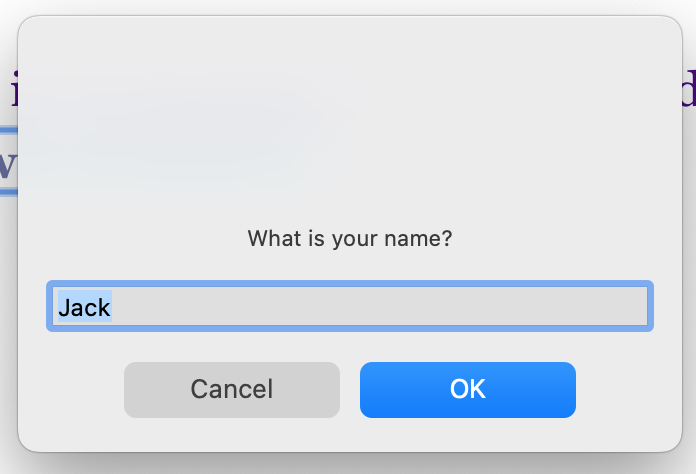
To do so, input the following code into your passage to make Twine present the player with a text box. For this, we’ll use $name as our variable name.
If you’d like to set a default name, like say “Jack”, that the player can change:
(set: $name to (prompt: "What is your name?", "Jack"))If you don’t want to set a default name:
(set: $name to (prompt: "What is your name?", ""))The text you enter in the quotation marks after prompt: will appear as the prompt in the text box. If you include a default name, that name will appear in the text box. If you do not set a default name, there will be no text in the text box when it appears.
After you have set the $name variable, you can use it in your text and whatever text your player entered for their name will appear in the text. For example:
The captain of the ship turns to face you and calls out to you, "Watch out, $name! The storm winds are getting quite strong!"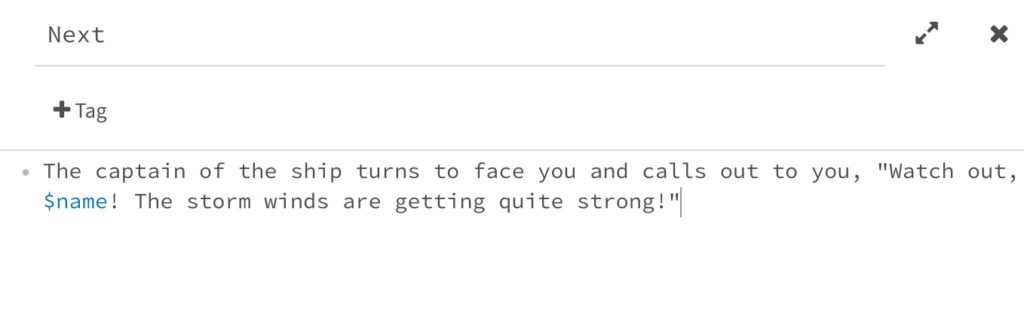
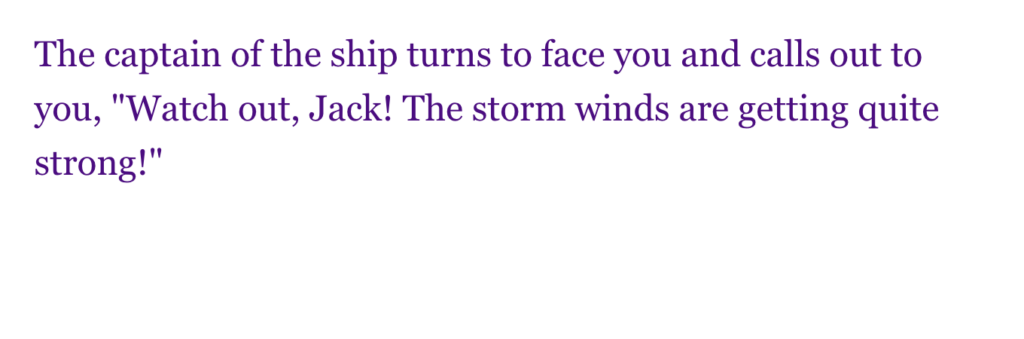
On the left, using our $name variable in a passage after it’s been set; on the right, what our player sees if they named themself Jack.
Remember: Variables will only work in passages after the passage where they are set. So, if you only have a player set $name in the third passage, $name will not work in the first passage.